mindful-communication-badge in the Email Signature of 'Outlook 365'
This article describes the simple process for setting up a signature in ‘Outlook 365’.
1. Save Signature
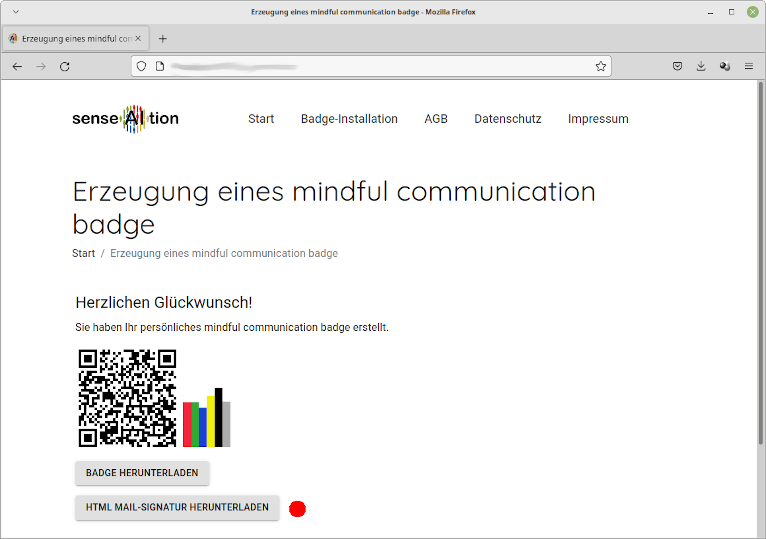
After you have generated the ‘mindful communication badge’, press the button “DOWNLOAD HTML MAIL SIGNATURE”.
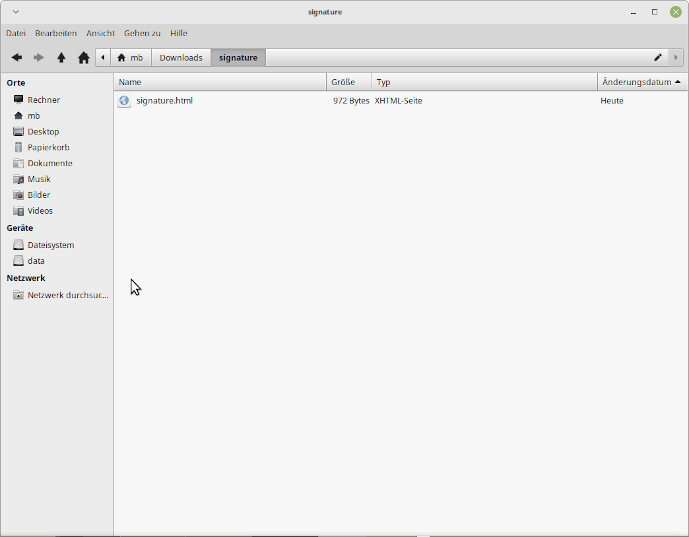
A file signature.html will be saved in the download directory on your computer.
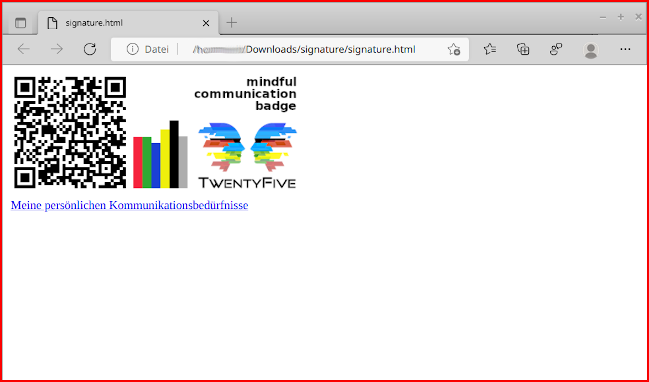
You can now open this signature.html file by double-clicking it in your browser.
Installation in Outlook 365
Open ‘Outlook365’ in a new/second browser window and log in to your email account.
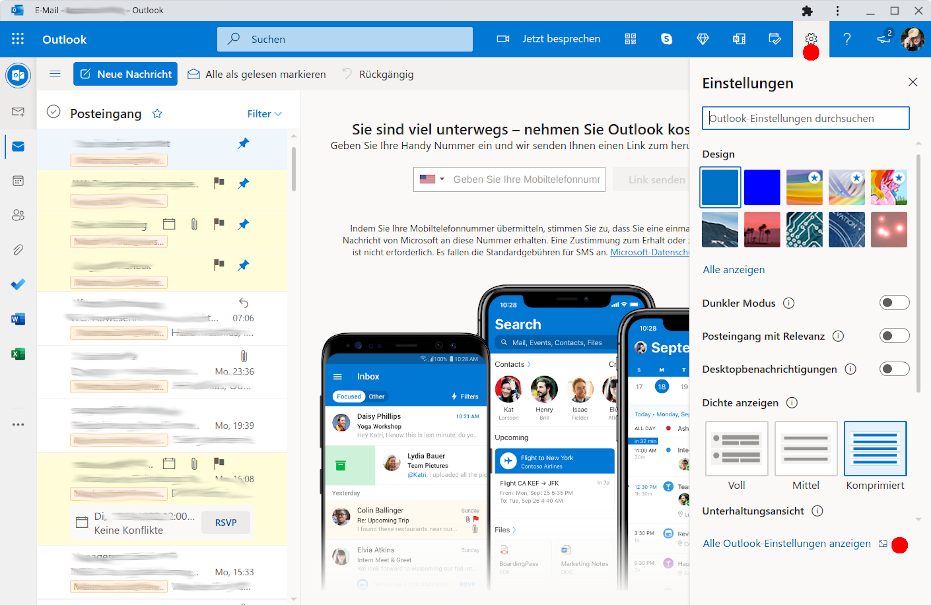
Using the “gear icon” in the upper right corner, open the settings area and press the “View all Outlook settings” link at the bottom of the list.
Now you can open the “Compose and reply” sub-tab in the “Mail” tab. There you can manage your signatures. Press the “+ New signature” link and give it a name.
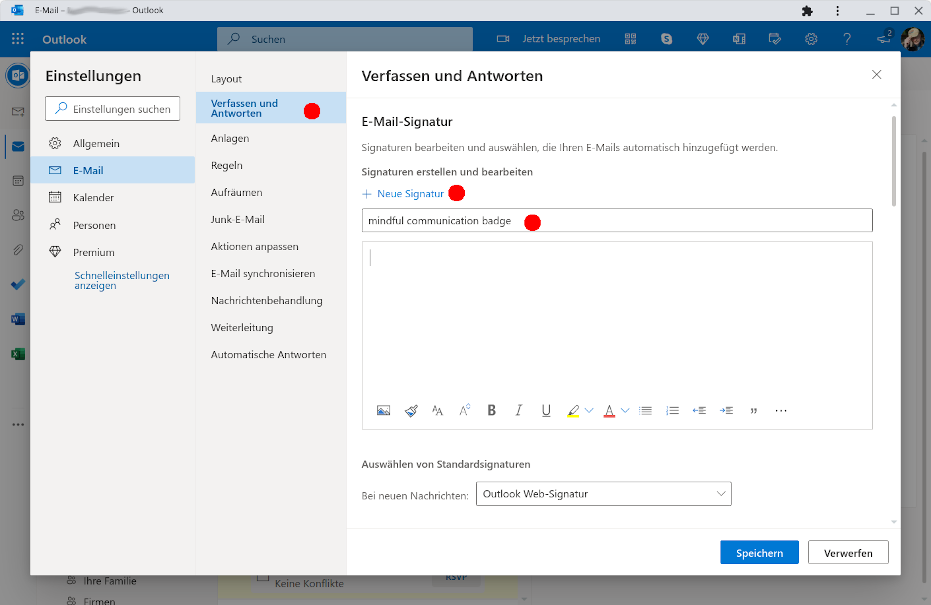
Begin designing in the edit area below the signature name. The ‘mindful communication badge’ you created is a good starting point. You can customize and extend it later as you wish.
To use the signature from the signature.html file, select the entire content in the other browser window (where you previously opened the signature) using the keyboard shortcut “Ctrl + a” (alternatively, you can drag a selection with the mouse over the signature area).
Then you can copy the signature into the design area of ‘Outlook365’. To do this, drag the entire selection via drag-and-drop with your mouse to this area in the other window.
Alternatively, copy everything with the keyboard shortcut “Ctrl + c” to the clipboard and paste the signature in the design area with “Ctrl + v”.
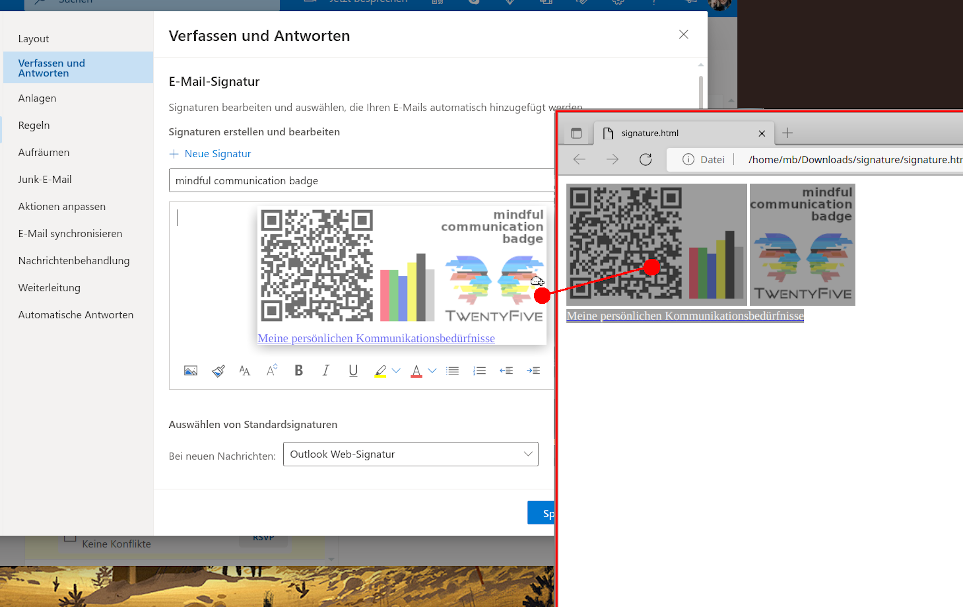
The signature with the ‘mindful communication badge’ is now set up. You still need to select it for use in your emails.
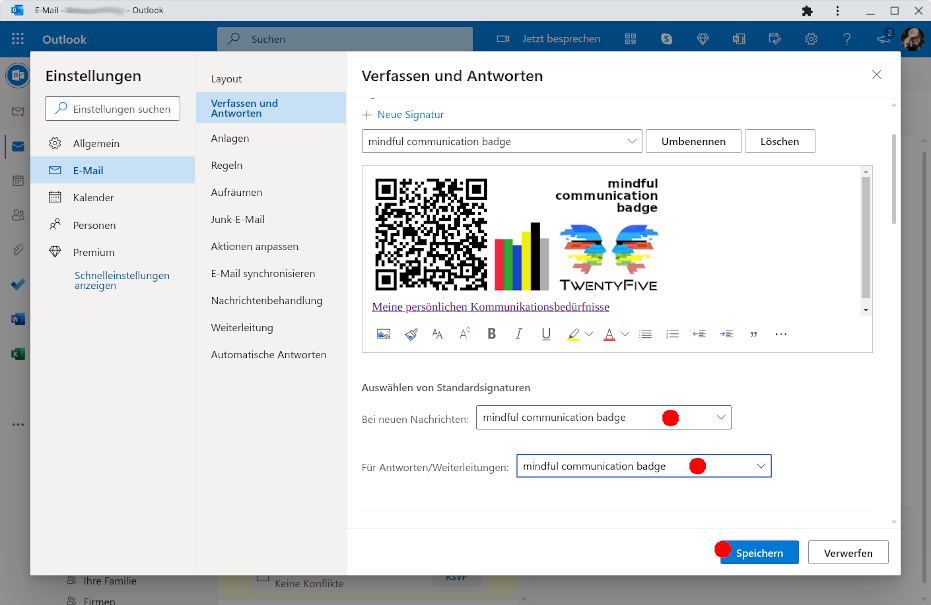
Don’t forget to save your changes (and thus the signature) at the end.
The Result
When you now compose a new email, ‘Outlook365’ will automatically include the ‘mindful communication badge’ in it.
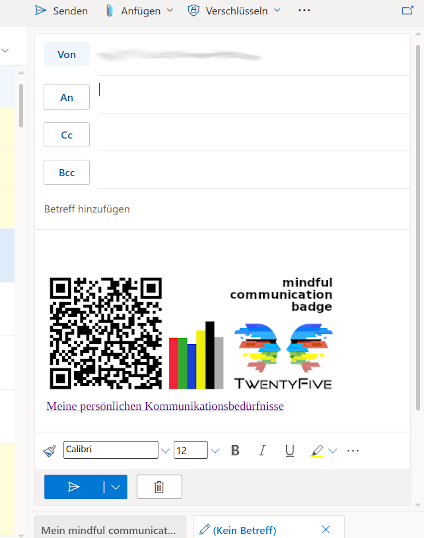
It is now visible to the recipients in the emails you send.